
Specifying the Canonical Domain is the second step in the broader practice of URL Optimisation, preceded by HTTPS Encryption and followed by URL Taxonomy Optimisation.
Table of Contents
The Canonical Domain specifies the version of the preferred domain (www or non-www) that precedes the domain name. If you use the two domain versions interchangeably on and outside your website, search engines may treat the two versions of the same page as references to separate pages, resulting in duplication issues and split authority signals on a large scale. When you set your preferred domain, you’re pre-emptively addressing such duplication issues, split authority signals and crawling budget inefficiencies.
The www vs non-www Canonical Domain
In the early days of the internet, administrators used subdomains to specify protocol types on a single server (ftp.example.com for files or smtp.example.com for mail). The www subdomain was simply the designated path for the World Wide Web. While search engines do not inherently favour one version over the other, the choice involves practical trade-offs regarding how your website handles traffic and data.
1. non-www Canonical Domain
Search Results Visibility: This version creates a shorter, cleaner URL. The absence of www in the URL allows to accomodate more characters as part of the rest of the URL, without the URL being truncated in search results.
CDN Use Limitations: For a website with a high volume of global traffic in particular, selecting a non-www Canonical Domain can make it more difficult to effectively employ a Content Delivery Network (CDN). The use of a CDN is often employed in SEO to improve Page Performance, an organic ranking factor which translates directly into higher organic rankings.
2. www Canonical Domain
CDN Use Compatibility: Using a www Canonical Domain allows your website to work seamlessly with Content Delivery Networks (CDNs), which are primarily employed in SEO to improve Page Performance—a direct organic ranking factor.
Server Resource Efficiency: The www Canonical Domain allows you to keep your website’s tracking data (cookies) separate from your images and files. So when a website user loads a page, their browser doesn’t send this extra tracking data along with every single request for a picture or a script. This reduces the amount of extra data sent with every request, making the website lighter and faster for users while preventing the unneccessary use of server resources.
Normalising the use of Canonical Domain
Canonical Domain in WordPress
To set your preferred domain, you will need to login into your WordPress Dashboard and navigate to Settings > General, where you’ll need to ensure you have the preferred version of the domain specified, as illustrated below.

Canonical Domain in the Database
If it just so happens that you can’t access your WordPress website after doing this, you must change the settings in your database. You may reach out to your hosting provider’s customer support, explain that you’ve changed the Canonical Domain in WordPress and kindly ask them to fix it for you. If you prefer fixing it yourself and you’re using Hostinger, just follow the steps below:
- Log into your Hostinger account
- On the left sidemenu find Websites > All Website, then click on Dashboard next to the website in question.
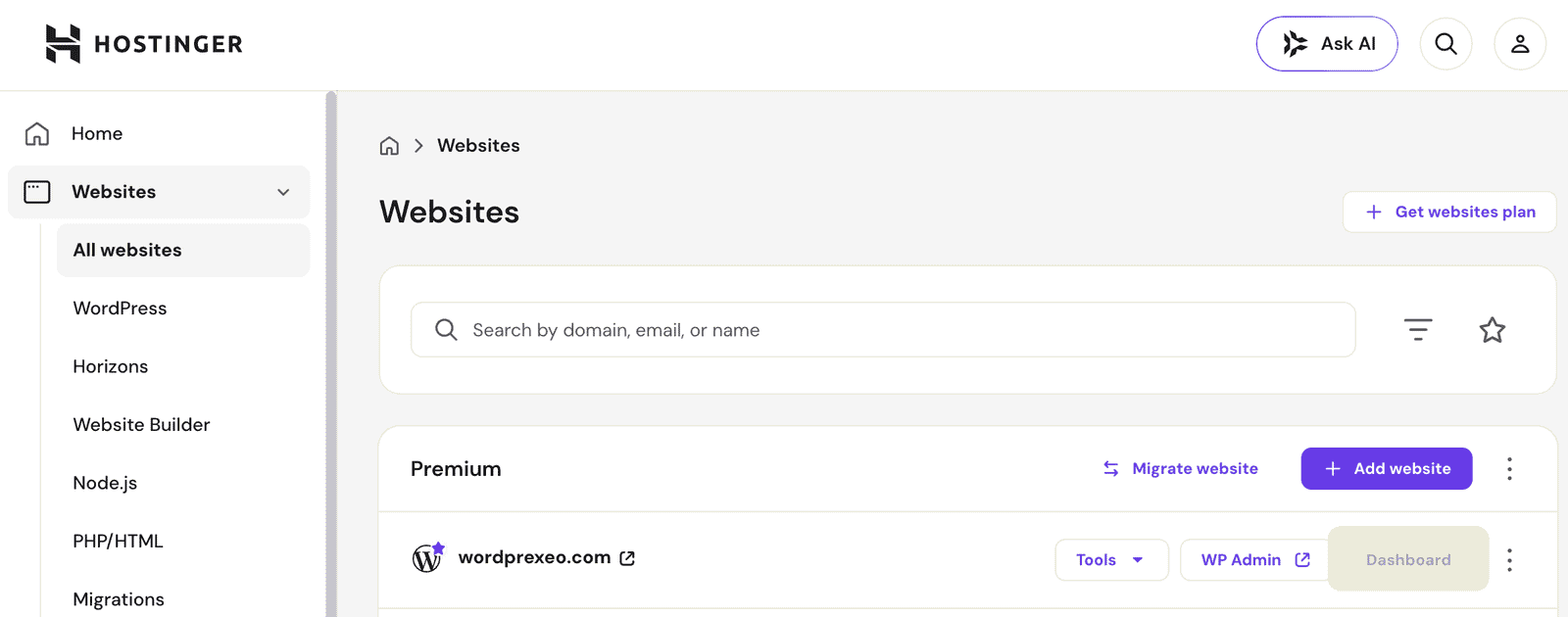
- On the left sidemenu find Databases > phpMyAdmin. If you have multiple hosted websites, you’ll likely have multiple MySQL Databases without a clear distiction for which database is for which website.

- Click Enter phpMyAdmin next to one of them and locate the wp_options subfolder.

- Within the wp_options folder you will find a table with a list of options, the first 2 of which will be siteurl and home.

- If both of these text fields specify the domain name you’re trying to set the Canonical Domain for, you’re in the right place. If not, you will need to go back to phpMyAdmin and select a different MySQL database until you locate the database for the website you’re trying to set the canonical domain for.
- Once you’ve located the right database, as evident in siteurl and home fields within the wp_options folder, you’re ready to change your Canonical Domain. click Edit and add/remove the www to the set your preferred domain version, across both site url and home input fields.

Canonical Domain in Analytics tools
If you’re using Google Search Console verified through the Domain property and the domain property uses the non-www, you may continue to use Google Search Console without any further changes, regardless of the canonical domain change you’ve made. You must note, however, that if you have multiple subdomains recieving organic traffic from Google – all of that traffic will be collected under this one property.
If your using the domain property, but with the www subdomain, your data will be restricted to the www subdomain. Consequentially, if your Canonical Domain is set to the www version, you will likely encounter no issues. On other hand, if your Canonical Domain is set to the non-www version (accounting for the fact the Google Search Console Domain property is set to the www version of the domain), your data will cease to collect or come back incomplete.
If you’re using the URL prefix property, you must ensure that the URL prefix uses the Canonical Domain. Failure to do so will result in no data or incomplete data collection.
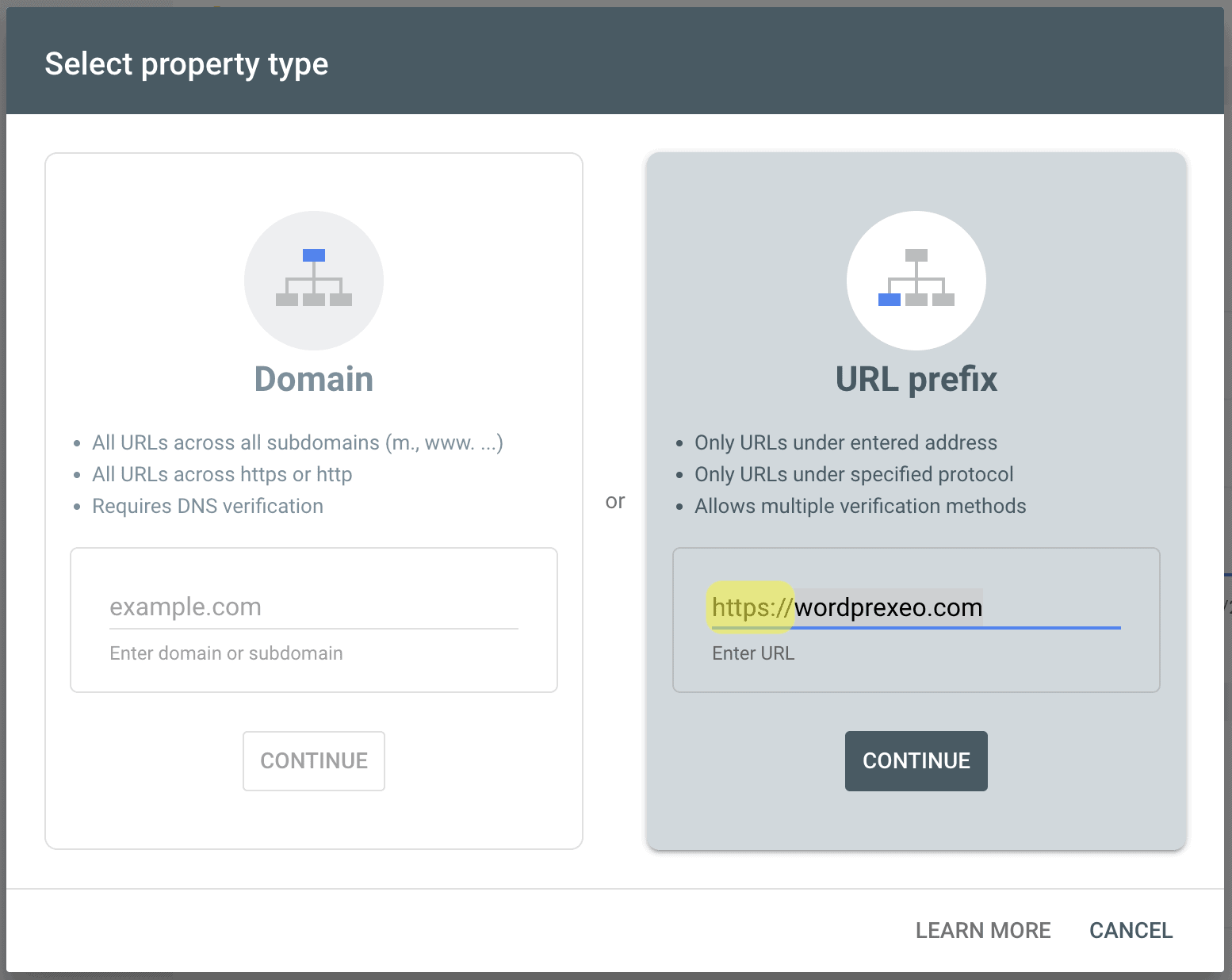
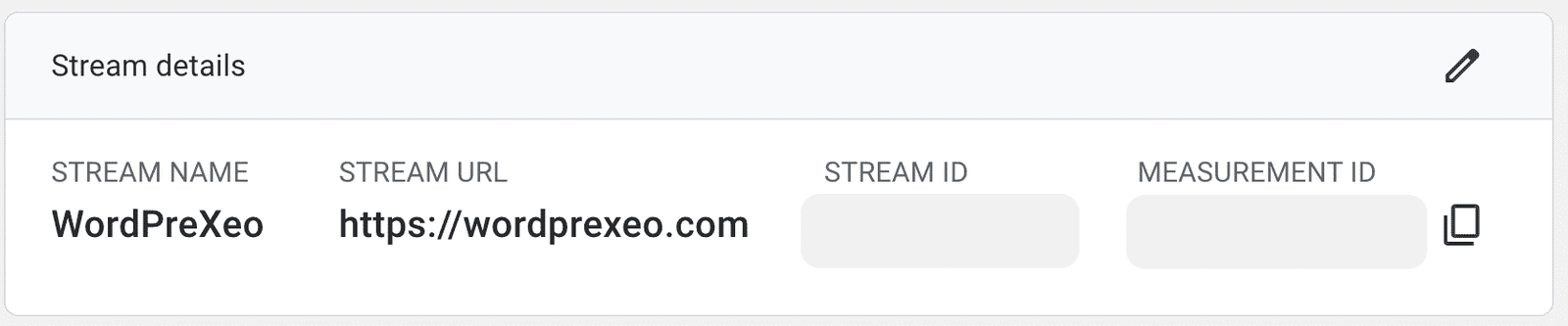
If you’re using GA4, log into your GA4 account and select the property in question, then click Admin. Find the Data collection and modification panel and click on Data Streams. Your Data Stream will list the domain that is being tracked with the corresponding www or non-www prefix. If needed, replace the prefix by clicking on the stream and then the pencil icon, as illustrated below.
Domain-wide Redirects to the Canonical Domain
Defining your Canonical Domain in the WordPress dashboard is a critical first step, but it must be supported by server-level redirects to account for best practice. Without the redirects, your website may remain accessible via two different addresses, which can lead to SEO issues. Implementing domain-wide redirects to the Canonical Domain will:
- Prevent Duplicate Content: If both the www and non-www versions of your website remain active, search engines may crawl and index both as separate entities. Although search engines have learned to recognise and discard duplicates caused by non-canonical domain URLs remaining accessible, they may still cause duplicate content issues, negatively affecting organic rankings.
- Consolidate Backlink Authority: External websites may link to either version of your URL. Domain-wide redirects ensure that all authority signals are funneled into your single preferred version, rather than being split between two alternative versions of the same URL. This consolidation is essential for maintaining a strong backlink profile across the entire website.
- Optimise the Crawl Budget: When a page is available through both, www and non-www version of the URL, search engine bots may end up crawling both versions. The additional crawl requires the search engine bot to spend more resources but there won’t be any additional value gained from it because the information contained on the alternative page is identical. So, consolidating the 2 alternative versions of URLs to a single Canonical Domain will prevent the search engine bots from wasting resources which would otherwise be spent on crawling and re-crawling pages that are indeed useful to crawl.
Canonical Domain Redirects in .htaccess
Domain-wide redirects are typically implemented within the .htaccess file on your server. This file acts as a gatekeeper, intercepting any request for a non-canonical URL and instantly forwarding the users and search engine crawlers to the canonical version.
Luckily, the Rankmath SEO WordPress Plugin allows editing .htaccess file, so you’re able to place a code snippet directly into it to deploy domain-wide redirects from your non-canonical version of the domain to the canonical domain.
Go to Rank Math SEO > General Settings and tick the box upon reading about and understanding the risks of editing the .htaccess file.
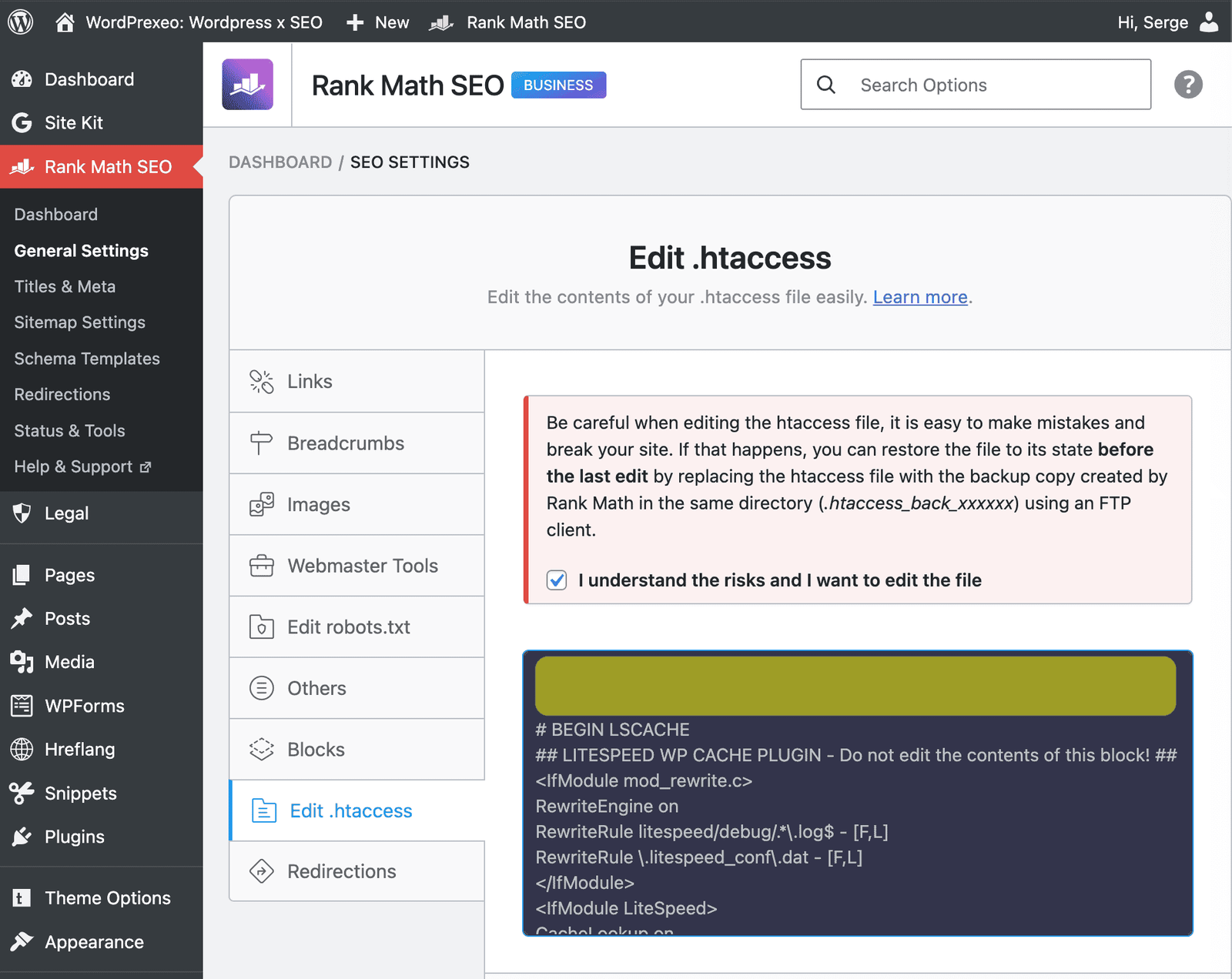
The code snippet will need to be placed at the beginning of the .htaccess file and there are two versions, depending on your preferred version for the Canonical Domain.
1. Redirects to the non-www Canonical Domain
<IfModule mod_rewrite.c>
    RewriteEngine On

    # Force HTTPS and redirect from www to non-www
    RewriteCond %{HTTPS} off [OR]
    RewriteCond %{HTTP_HOST} ^www\. [NC]
    RewriteRule ^(.*)$ https://wordprexeo.com/$1 [L,R=301]
</IfModule>
2. Redirects to the www Canonical Domain
<IfModule mod_rewrite.c>
    RewriteEngine On

    # Force HTTPS and redirect from non-www to www
    RewriteCond %{HTTPS} off [OR]
    RewriteCond %{HTTP_HOST} !^www\. [NC]
    RewriteRule ^(.*)$ https://www.wordprexeo.com/$1 [L,R=301]
</IfModule>