
Table of Contents
Internal Linking Optimisation stands for the optimisation of your website’s internal hyperlinks that lead from one internal page to another and which are different from external links which lead from your pages to other pages on external domains or from pages on external domains leading to yours.
Internal Linking Importance
The importance of Internal Linking is multilayered:
- Internal Linking facilitates the user navigation from one page to another in search for related topics.
- Internal Links is the main method that Search Engines such as Google use to discover new Landing Pages on your website.
- Internal Linking facilitates the passing of Page Authority or URL Ranking from one page to another across your website.
- Internal Linking serves as an additional hint to Search Engines about how different pages on your website are related to each other and what the page is about or what keywords it should rank for.
Internal Linking Structure
Internal Links on your website create a sort of structure for how Search Engine bots will discover your content. Not only that but depending the amount of Internal Links pointing to each page as well as their placement on the page, Search Engines will place a certain importance to those linked pages and will learn to associate them with particular topics. Additionally, Internal Linking also dictates the context of how your users will discover your content.
The primary way for a Search Engine to discover pages on the wider web before ranking them si simply by visiting the hyperlinks placed on already known pages. So, there is no wonder that having hyperlinks on your page is important.
To use internal links optimally you must follow a small set of general recommendations, such as making sure all your pages on the website are discoverable within a few clicks, or in other words having a flat website internal linking structure.
In simple terms, when you link from one page on your website to another one, you’re casting a vote that the linked page is important. It facilitates the flow of Page Authority or URL Ranking across internal pages on your website, which puts you in a better position to compete for select keywords.
Put simply, you want more internal links pointing to the key pages on your website and less internal links pointing to the pages that aren’t that important to rank with in search results.
Although many SEO Mangers will recommend a process of Internal Linking that sees you linking from high traffic pages on your website to pages that you deem important, I would recommend approaching Internal Linking Optimisation strictly based on semantics. In other words, Internal Links should be placed not merely from pages that are high-traffic but from pages that are highly related to the linked-to page.
This philosophy can take many forms. For instance, it could be an Internal Link from a section on a page to a Landing Page that explains a niche concept in more detail. This could also be a page further up the hierarchy that provides a more high-level explanation of a broader topic or it could also be a related topic.
Most pages on the web focus on particular topics, however as it often happens a wider context is required to fully understand the information at hand. Instead of just explaining that context in full, you can mention it on the page and link out to other internal pages on your website.
Thus, users that are not familiar with it get the opportunity to visit the other pages and document themselves, while those that are not interested can move on without being presented with information that is irrelevant to them at that stage.
Internal Links Placement
Not all Internal Links are born equal and their placement on the page dictates how much of an importance they are assigned when casting their vote.
1. Navigation Links
The first form of Internal Linking comes in the form of Navigation Links. These are the links that will be used most often to navigate across your website and are normally placed at the very top of your page. Navigation links carry the function of leading to the most important pages on the website.
Although this might be self-explanatory, Navigation Links are not necessarily intended to lead to all the pages on the website. If you have a rather large number of pages, it is a good idea for any of them to be accessible within 3 clicks. This is why it’s important to consider the internal linking structure, so you don’t overwhelm visitors with a large number of topics directly as part of your main navigation.
Edit the Main Navigation in WordPress
If you have the Frontend Top Bar enabled in WordPress, select Customise to specify or edit the Main navigation items.

If your Frontend Top Bar isn’t enabled, you may access the same feature from the WordPress backend under Appearance > Customise.
- You’ll then need to select Menus, where you’ll have the option to set up multiple menus that can be used on various parts of your website.
- Arguably the most important menu you can have on most websites is the Top Navigation menu, also reffered to as the Main Menu.
- In the Main Menu you will find the options to add, remove, reorder and nest menu items.
- Each menu item will have its own basic preferences, including the option to specify the anchor text or open the link in a new tab.

2. Content Links
Content Links are hyperlinks that are placed within the body of the page. In simple terms, the higher up the page the link is the stronger the vote it casts in marking the linked page as important and the lower on the page the link is placed the lower the strength of that vote. It may also come in handy to know that the more Internal Links in your page content the weaker the each link is for passing authority over to the linked page.
Content Links are particularly useful for explaining adjacent topics in more detail as part of other Internal Pages. In a commercial setting, internal Content Links are also often used to lead to product pages. This supports the idea that customers that you’re informing on a particular topic through content will be more inclined to buy from you if you place your offer in an appropriate manner within your content.
Internal Links in WordPress Page Content
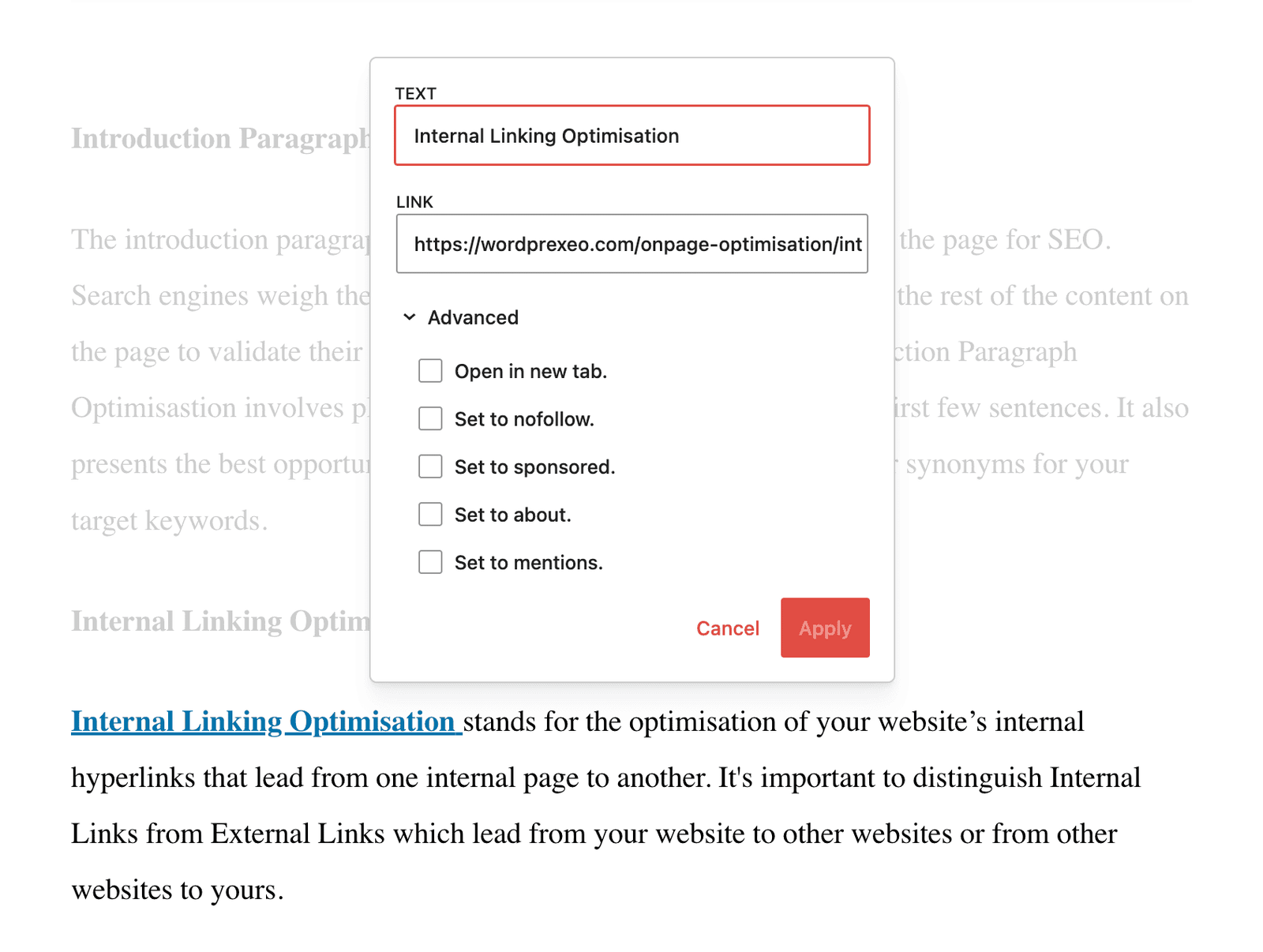
To place an Internal Link in WordPress just select the text to be used as Anchor Text, click the Link icon and enter your Destination URL.
3. Footer Links
Footer Links can also take many forms. For many websites, it’s a great opportunity to accommodate this section to display a larger collection of Internal Links, including links to deeper pages that may not necessarily be featured within the main website navigation. In the case of websites with an overwhelmingly high number of pages, this section normally displays Internal Links to the most visited pages on the website.
I addition, the Footer commonly accomodates internal links to policy pages, such as your Terms & Conditions, Privacy Policy, Cookie Policy and any other policy pages you may have.
How to Insert Internal Links in the Footer
Although you may need to insert internal links in the Footer for various reasons and you may do so using various methods, let’s focus on a collection of links to the website’s policy pages.
- Navigate to Customise > Widgets.
- If you Footer has multiple columns, select one of the columns.
- Add a Widget in the form of a Block
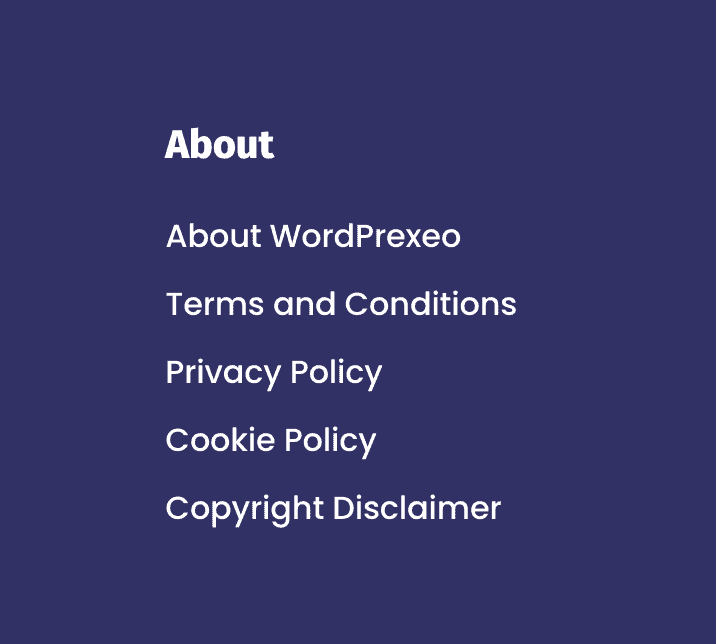
In the Block text input field, you can add your collection of links using HTML. You may need to apply CSS styling to match the look and feel of the rest of the website. The example below illustrates a collection of internal links added as a list, using HTML.
<h4>About</h4>
<ul>
    <li>
        <a href="https://wordprexeo.com/wordpress-seo-consulting/">About WordPrexeo</a>
    </li>
    <li>
        <a href="https://wordprexeo.com/legal/terms-conditions/">Terms and Conditions</a>
    </li>
    <li>
        <a href="https://wordprexeo.com/legal/privacy-policy/">Privacy Policy</a>
    </li>
    <li>
        <a href="https://wordprexeo.com/legal/cookie-policy/">Cookie Policy</a>
    </li>
    <li>
        <a href="https://wordprexeo.com/copyright-intellectual-property/">Copyright Disclaimer</a>
    </li>
</ul>
4. Breadcrumbs
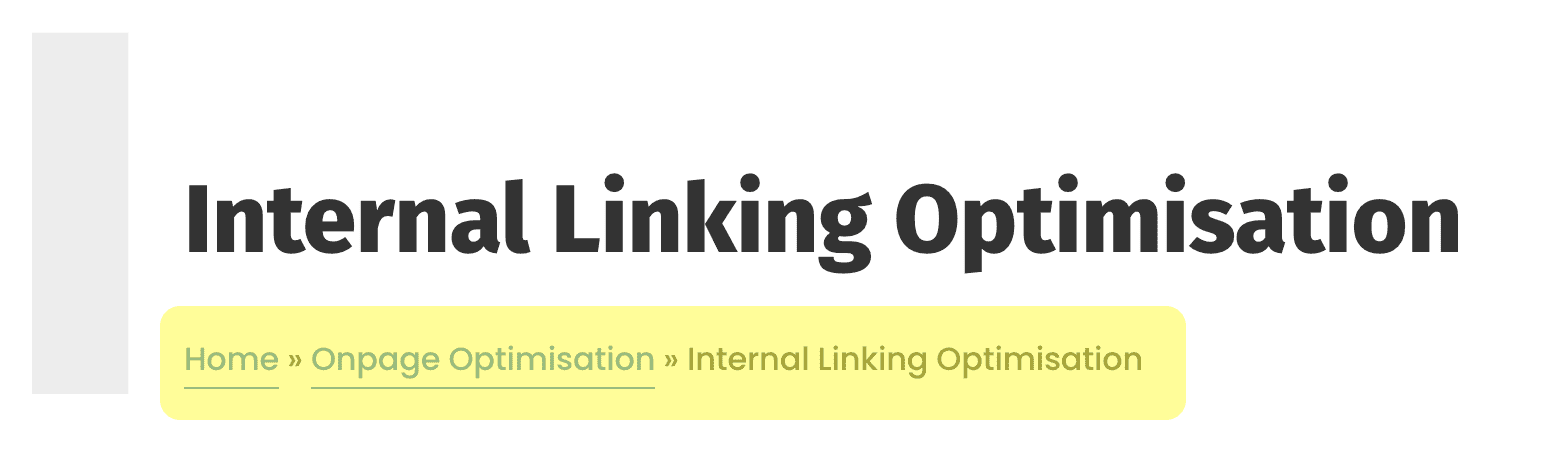
Breadcrumbs stand for small text paths, located at the top of the landing page that show the user’s current location on the website, leaving a trail of the path one would have to use to arrive at that landing page from the homepage of the website. In other words, the breadcrumbs are a more intuitive way of showing the URL of a landing page, with clickable sections that allow users to navigate back to broader categories, that the landing page is a part of.
Breadcrumbs are particularly relevant to those visitors who arrive at a landing page that is located deep in the website, guiding them to other parts of the website, lowering bounce rates and encouraging positive onsite behaviour.
Breadcrumbs play an important role for both users and search engines, as apart from being featured on the landing page, they may also be shown in organic search results, replacing the URL section. This affords the presentation of a landing page to appear more polished in search results, and therefore more appealing to the user.
Types of Breadcrumbs
This is the most common type of breadcrumbs, which shows the path one must take to get back to the website homepage.
Show the attributes of a product, using tags, as opposed to categories to show one’s position on the website, used mostly in ecommerce.
Show the historical pathway that was used to arrive to the landing page and can be seen as an alternative for one’s internet history bar.
Setting Up Breadcrumbs using Rankmath
There are multiple ways of deploying Breadcrumbs. One way of deploying Breadcrumbs with minimal technical involvement is using the Rankmath SEO Plugin. In order to be able to deploy Breadcrumbs using Rankmath, you will it need it set-up to Advanced Mode within Rankmath SEO > Dashboard.

Then, navigate to Rankmath SEO’s General Settings > Breadcrumbs to enable the Breadcrumbs and set-up the basic preferences for how the Breacrumbs should display and work. You may need to refer to Rankmath’s guide on how to enable Breadcrumbs to understand the controls and the different deployment methods.
The easiest method, needing the least technical involvement is using a dedicated Rankmath shortcode to deploy Breadcrumbs on specific pages. Just navigate to the page you’d like to feature the Breadcrumbs and insert the following shortcode in the backend editor in the place you’d like it to show.
[rank_math_breadcrumb]Upon placing the shortcode on the page, preferably as high up as the page template allows, in this case just below the H1 header – the Breadcrumb for the respective page will display on the front-end.
Anchor Text Optimisation
Anchor Text is the visible portion of text that a user or search engine must click in order to access the hyperlink. Anchor Text plays a particularly strong role in assigning a certain semantic meaning to a page. When you wrap a portion of text in an Anchor Text leading to another Internal Page, Search Engines such as Google will learn to associate that new page with the anchor text that is used to lead to it.
This creates several hypotheses that SEO Managers use to optimise Internal Linking:
- Do not link to different Internal Pages with the same Anchor Text as it creates an environment for Keyword Cannibalisation.
- If possible, opt for Internal Links with semantic Anchor Text and avoid generic Anchor Texts like “Click here” or “Read more” as they provide limited insight into what the page is about and are suboptimal for search engines.
Internal Linking Considerations
There are a number of other considerations when carrying out Internal Linking Optimisation. Although this might be obvious to most SEO Managers, you must always use “Dofollow links”. The reason for this is that as we’ve explained earlier Search Engines follow links from page to page to discover and index new pages and if your links are “Nofollow”, Search Engines will not follow them, so your pages will remain undiscovered. Secondly, they won’t cast that importance vote that search engines care about.
Similarly, a common practice for Internal Links is for them to be opened within the same browser tab, so as to not interrupt the user experience flow. There are certain situations when you would want to open the links in a new tab and those situations normally fall under scenarios where you lead users to sections of the website which are stand-alone in some regard. There is nothing you need to do to ensure the links open within the same tab, they do so by default. This is very different from external links, which you will normally want to set to open in a new tab, something that requires a small adjustment within your links’ code.
Lastly, another important consideration which is not always obvious is ensuring your Internal Links are absolute links and not relative links. The difference between the two is that the absolute links contain the entire address leading to the page, including the protocol and the domain name and subdirectories, while the relative Internal Links contain only the path of the URL in a relative manner to the existing URL, the page is linked from. This can prevent a whole different set of issues later down the line.
Avoiding Orphan pages
Orphan Pages are pages on your website that do not have Internal Links. In other words, if you have a page on your website that does not have another page linking to it, it will be flagged as an Orphan page by most technical SEO software. Although Orphan Pages can be discovered by Search Engines, such as Google from the XML sitemap, they sometimes tend to be ignored when indexing. It is an issue not only for Search Engines but also for users who wouldn’t be able to discover them from the other pages on your website.
Diagnosing Orphan Pages using Sitebulb
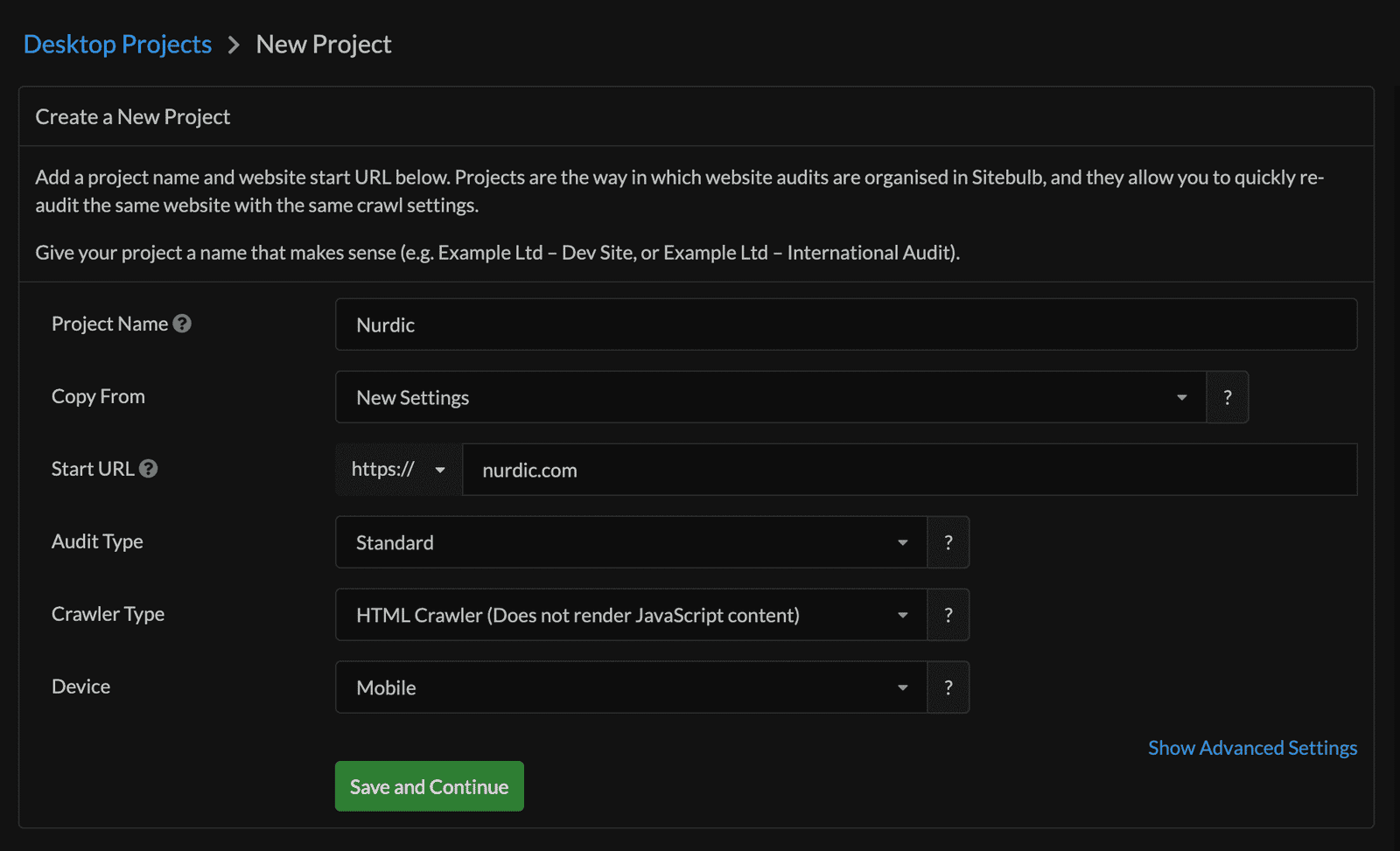
To diagnose if your website has any Oprhan pages, open Sitebulb and create a New Project.

Fill in the Project Name and use the domain name as the Start URL, then Save and Continue.
In the Audit Settings, enable the Search Engine Optimisation toggle.

When checking for Orphan Pages, it is also recommended to fill in the location of the XML Sitemap or if you’re using Rankmath for specifying your XML sitemap, use the location of the XML sitemap index which will contain all the XML sitemaps.
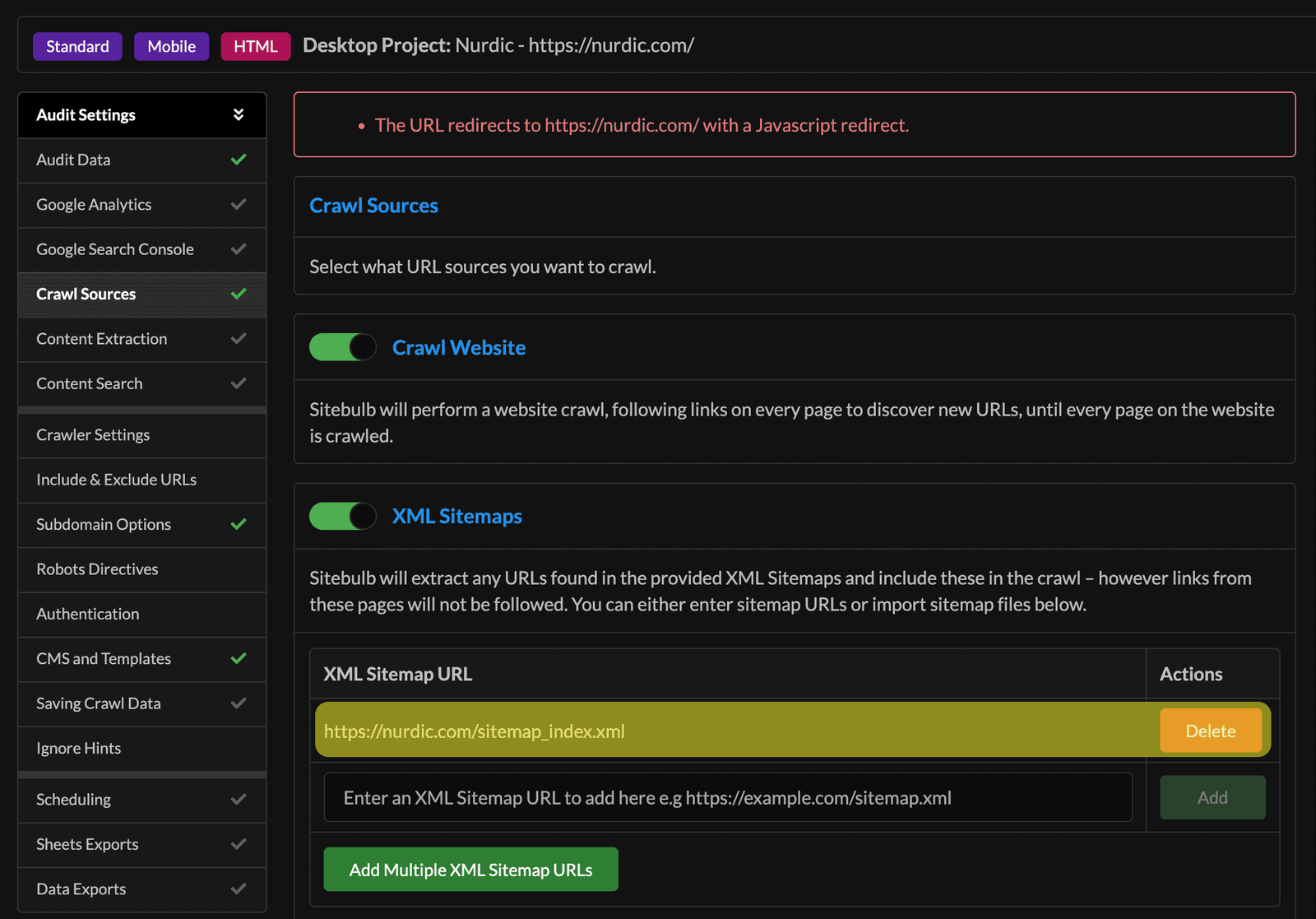
In the Sitebulb’s Audit Settings, find Crawl Sources, toggle on the XML Sitemaps and check if the crawler managed to find the location of the XML Sitemap or XML Sitemap Index. If not, specify the XML Sitemap or XML Sitemap Index and Start Now.
Upon the crawl completion, open the URL Reports > XML Sitemaps > Indexable and only found in XML Sitemaps. This report will show you the URLs that are listed in the XML Sitemaps, but the crawler did not find any internal links pointing to it on the audited website.
Ideally, you want no Oprhan pages on your website:
- If the URL must not be disoverable by search engines, you must remove it from the XML Sitemap and set it to noindex.
- If the URL must remain indexable, it is highly recommended to add internal links pointing to it on your website.
Internal Linking from Homepage
As a general rule, you will want to link to the most important pages on your website from your Navigation. However, when it comes to the Homepage, you might want to sprinkle an additional list of links to the pages that don’t make it to the Navigation, but which you consider important.
In some instances, SEO Managers prefer to link to the top-performing pages, in others Internal Links appearing on the Homepage might be automatically generated and change periodically. Regardless of your possibilities, you should always consider your users and what links they might need to reach the pages that create a good first interaction with your brand.
Internal Linking Optimisation Automation
Although the WordPress plugin library isn’t without a plethora of Internal Linking Automation tools, I would generally discourage the use of automation when it comes to internal links.
The reasons for avoiding Internal Links Automation:
- The automation tools are hardly in a good place to understand the wider context required for successfully placing links on your website.
- Instead of strategically linking internally from places where your customers need additional context, the automation tools are likely to be an oversimplified way of replacing targeted text with anchor text leading to other pages, which is far from ideal.